Overview
This document is giving you an overview of the DataLbry's JetBrains Space Connector for version 0.1.0-alpha.1643645113.
What is JetBrains Space?#
JetBrains Space is an all-in-one solution for:
- building and delivering software
- collaboration and communication
- team management
- project management
Obtaining Credentials#
To be able to use this connector you need the following:
- Client ID
- Client Secret
- JetBrains Space URL
A JetBrains Space URL looks like the following: https://<your-organization>.jetbrains.space. Where you set the value for <your-organization> upon creating the JetBrains Space instance. For example here at DataLbry we would use https://datalbry.jetbrains.space
To obtain the Client ID and Client Secret you need to have an existing JetBrains Space instance. Then you can head over to JetBrains' official documentation on how to obtain the credentials. Thereafter you will have an Application setup in your JetBrains Space instance. Additionally you need to give this application all Read/View permissions.
Targeted Documents#
The following documents are provided by the connector with detailed information:
- Absences
- Blogs
- Profiles
- Projects
- Issues
- Checklists
- Repositories
- CodeReviews
Additional Options#
Project Filter#
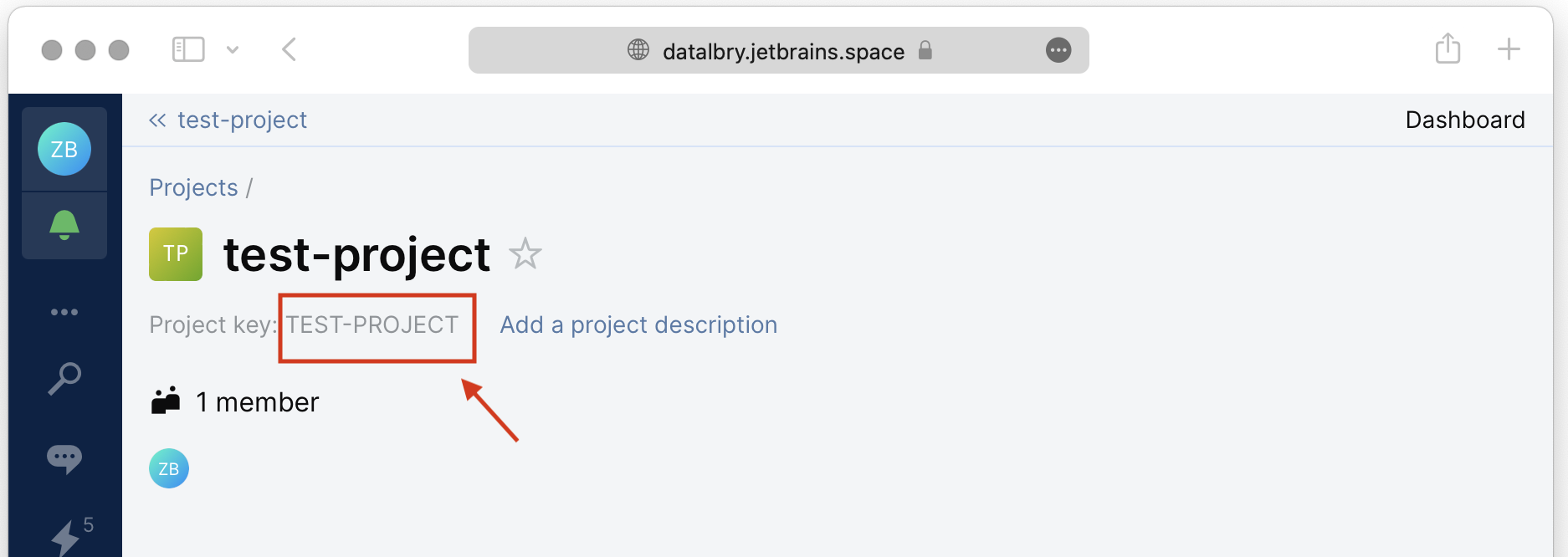
Filtering for projects can be achieved in two ways. Either by using an Allow Filter or an Deny Filter. To use any filter you hae to provide Project Keys.
The Allow Filter allows the connector to process only the Projects you specified. The Deny Filter denies the connector to process Projects you specified.
info
If a project is in both filters, then the connector will be denied processing it.
info
The filter affect also documents that are part of a project. For example: If you deny the connector processing a project, then it's issues will not be processed either. This is because an issue if part of a project.
To use these filters you have to provide the Project key. In the following picture you see a test project in our
JetBrains Space instance. The Project key - surrounded by the red box - in this example is TEST-PROJECT.